Add-ons
Add a caddie, spa visit, wine pairing or another extra to the course, hotel, restaurant or activity it belongs to, and decide who pays for it.
An add-on is something extra arranged with a supplier already in the trip: a caddie on a round, a spa afternoon at the hotel or a wine pairing at dinner.
Add it directly to the course, hotel, restaurant or activity it belongs to.
Adding an add-on
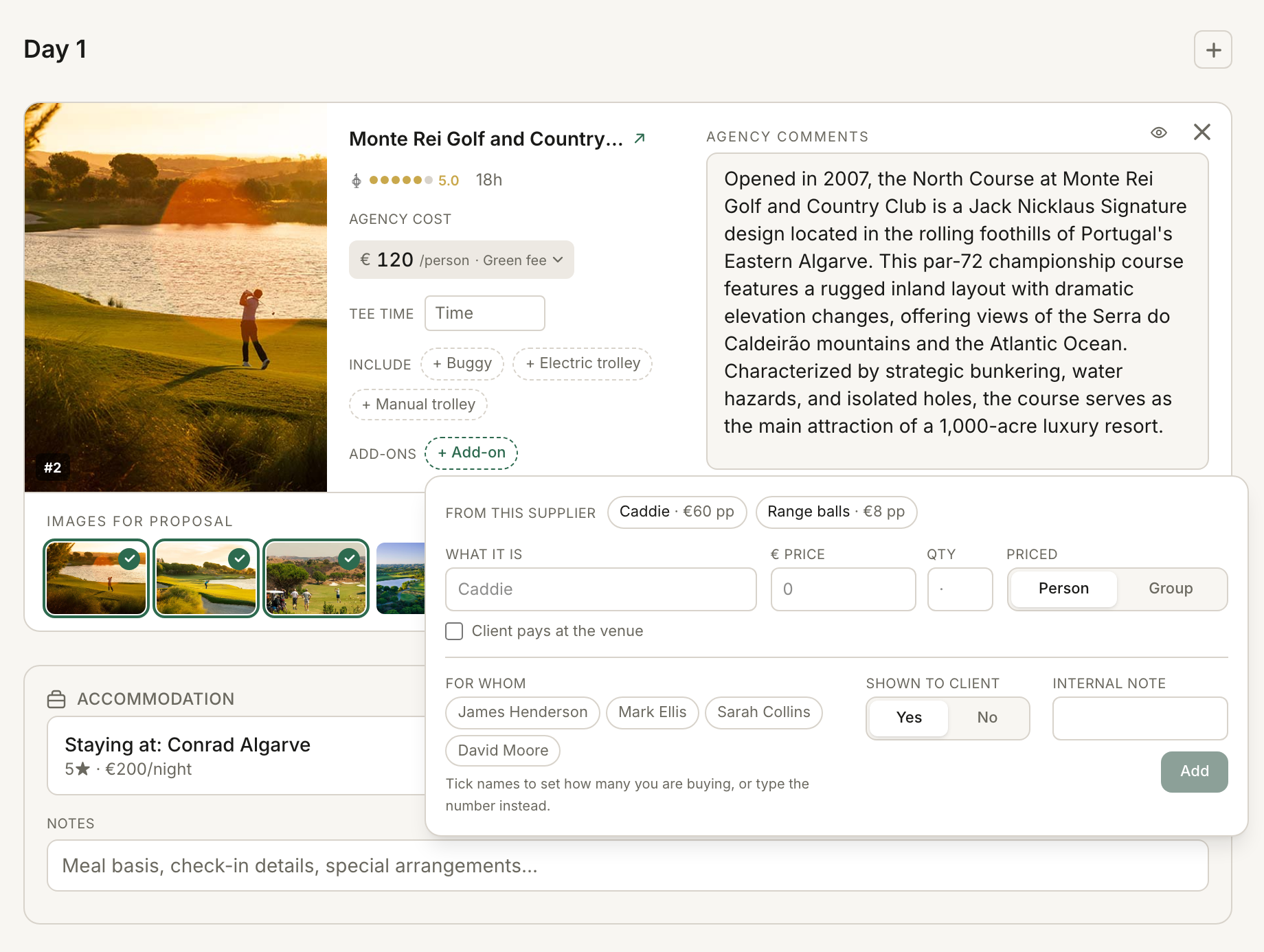
- Open the trip in the itinerary editor.
- Find the course, hotel, restaurant or activity.
- Press + Add-on.
- Enter What it is, the price and Qty.
- Under Priced, choose Person or Group.
- Tick “Client pays at the venue” if the group pays the venue directly. Leave it unticked to put the add-on in the package price.
- If the trip has a list of travellers by name, choose them under For whom when needed.
- Choose whether it is Shown to client.
- Add an Internal note if you need one.
- Press Add.
Per person or per group
Use Person when the price is for each person. A per-person add-on always needs a quantity.
Qty is always the total number of add-ons. Use For whom to choose who pays for them; RoundPlan splits the total evenly between those travellers. For example, 4 massages at €80 for Pete and Ana means €160 each.
Use Group for one charge shared by a group, such as a private dining room. Names on a group-priced add-on do not change the price. They only decide who pays it when a payment is split.
Choosing who pays
Leave “Client pays at the venue” unticked when you are putting the add-on into the package price.
Tick it when the group pays the venue directly. On a dinner the group settles at the restaurant, it is already ticked: a wine pairing there goes onto that same bill.
A client-paid add-on stays out of what you collect and what you owe the supplier through the package.
Saving add-ons on a supplier
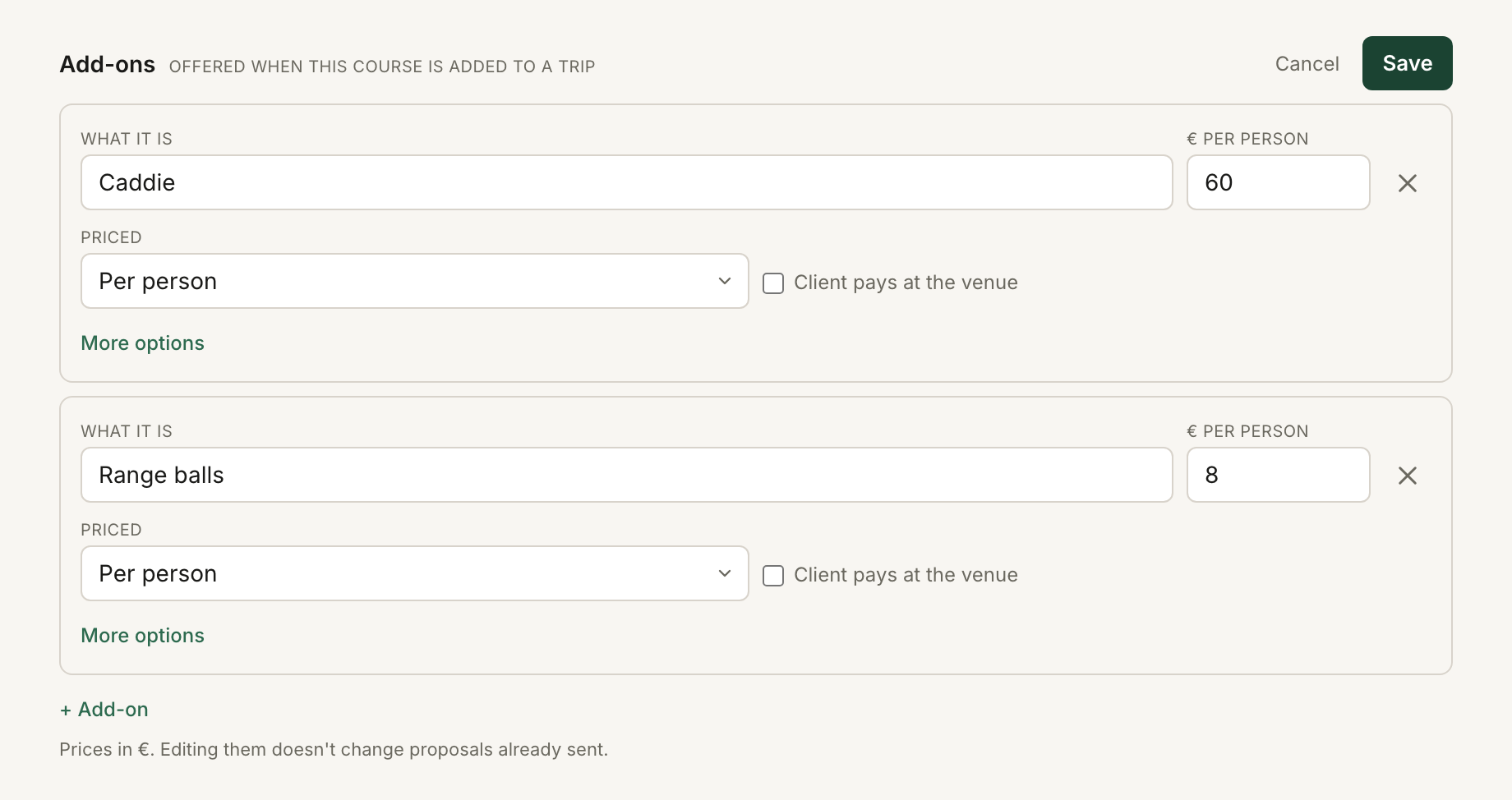
If the same club regularly offers a caddie or the same hotel sells late checkout, save it once on the supplier record.
- Open the course, hotel, restaurant or activity in the library.
- Press the pencil on Add-ons.
- Press + Add-on.
- Enter what it is, the supplier's price and whether it is per person or per group. Tick “Client pays at the venue” if the group pays the supplier directly.
- Press Save.
The price is stored in the supplier's currency.
Next time you press + Add-on on a trip using that supplier, its saved extras appear under “From this supplier”. Pick one to fill the form, then set the quantity and who it is for before adding it to the trip.
Changing the add-on on the supplier record does not change proposals you already sent.
See Your supplier libraries for more on saved supplier information.
What happens in Overview and Bookings
An add-on you bill appears in Overview under the course, hotel, restaurant or activity it belongs to. It has its own margin and client price.
In Bookings, it stays with that supplier rather than becoming a separate booking. A club booking might read “incl. 2× Caddie (Anna Ruiz, Tom Hale)”.
If the client pays it directly, Bookings marks it “paid at the venue”.
See Bookings for the supplier workflow.
When only some travellers pay
If a billed add-on is assigned to particular travellers, a per-person payment split makes those travellers pay for it. Everyone else's share falls by the corresponding amount, so the group total stays the same.
The client page can show the price everyone pays, then “Some travellers pay for extras on top. See who pays what”, with first names and the extra amount.
See Collect payments online for how each traveller's share reaches their own payment link.
Removing a traveller from an add-on
If you remove a traveller who is named on an add-on, RoundPlan asks what should happen to the extra.
“Remove the add-ons too” deletes any add-on that was only for that traveller. Shared add-ons keep their Qty, and the remaining named travellers pay for them.
“Keep the add-ons” leaves the price as quoted so you can assign them to someone else. Until then, the add-on is marked as unassigned.
For costs that belong to the trip rather than one supplier, see General items.
Still stuck? Email support@roundplan.io and a human replies.